
VS Code extension
The VS Code extension means the official OpenAI Codex extension in VS Code. It reads the same Codex configuration as Codex CLI and Codex App, so you do not need to configure the SU8 API key, model, or endpoint again in this chapter.
Download the extension
Search for Codex in the VS Code extension marketplace, then install the official OpenAI extension.
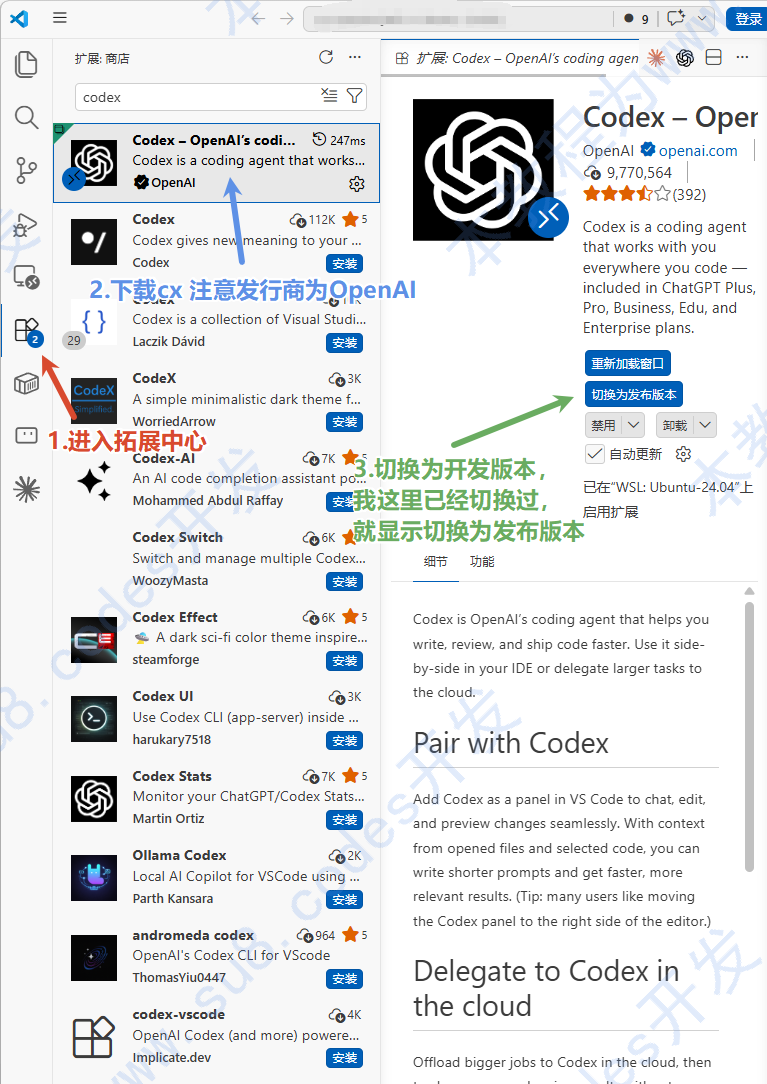
After installation, fully restart VS Code. This lets the extension reread your local Codex configuration when it starts.
Configuration
Codex CLI, the VS Code extension, and Codex App use the same configuration method. They read these files from the system user’s home directory:
~/.codex/config.toml~/.codex/auth.json
To connect the VS Code extension to SU8 Codes, read Codex CLI setup. That page explains how to write the SU8 endpoint, model, and API key.
After writing the configuration, fully quit and reopen VS Code. If the extension still reports errors, first run codex in the terminal to test whether the CLI can connect. If the CLI works, the issue is probably in VS Code extension loading or cache.