
Fast setup
For the fastest setup, use CCS one-click import. It writes your SU8 API key, API endpoint, model, and usage query settings into CC Switch in one step, so you do not need to copy a pile of fields by hand.
CCS means CC Switch. It is a local client configuration manager that can manage provider settings for Claude Code, Codex, Gemini CLI, OpenCode, OpenClaw, Hermes, and other tools in one place.
| Entry | Link |
|---|---|
| CCS official project | farion1231/cc-switch |
| CCS downloads | GitHub Releases |
| Latest CCS version | Latest Release |
| CCS website | ccswitch.io |
Before you start, confirm two things:
- You have created a key by following Get an API key.
- The latest version of CCS is installed on your computer, and your system has registered the
ccswitch://open protocol.
If CCS is not installed yet, download the installer for your system from GitHub Releases above.
1. Open the import entry from the SU8 console
Go to the SU8.Codes console, then open API Keys from the left navigation. Find the key you want to import, select the more-actions button on the right, then choose Import to CCS.
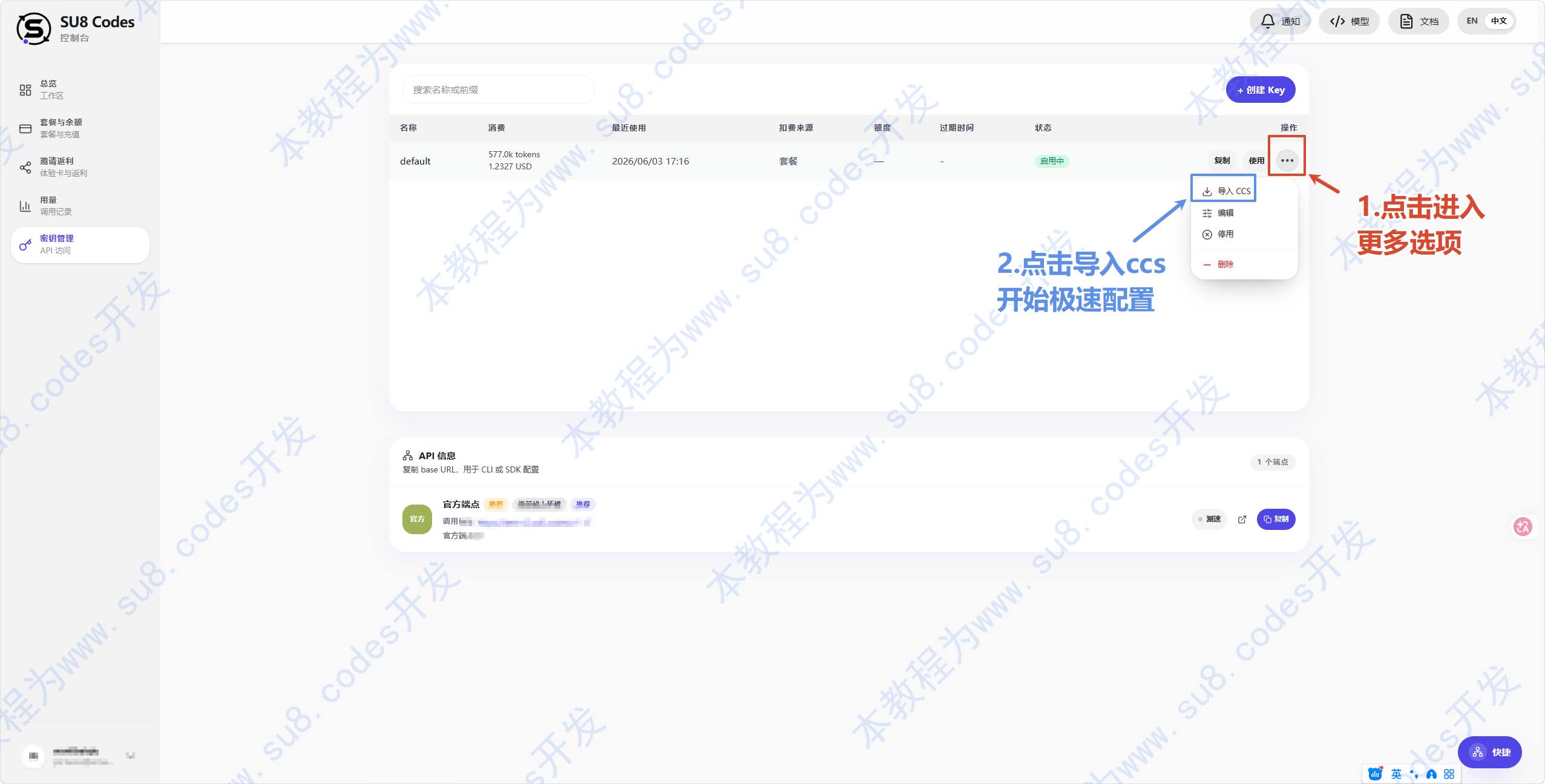
If you cannot see Import to CCS, the current key is usually not a newly created key, so the page cannot access the full plain-text key. Create a new key, then import that new key instead.
2. Choose the client, model, and API endpoint
The dialog asks you to choose three things:
- Client: the tool you want to import into, such as Codex, OpenCode, Claude Code, Gemini CLI, OpenClaw, or Hermes.
- Model: the default model this key should use.
- API endpoint: in most cases, choose the recommended endpoint.
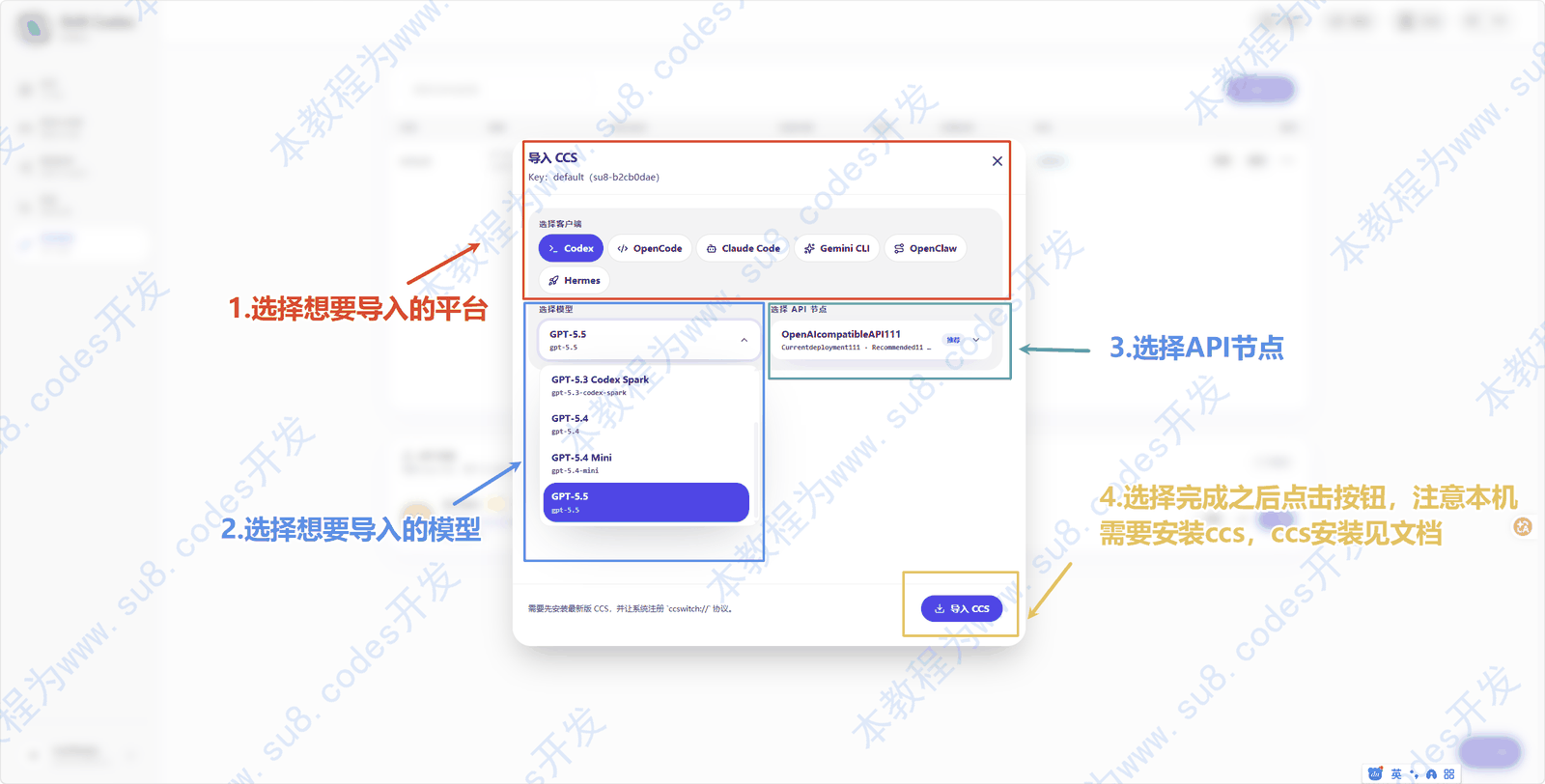
This import does more than copy a Base URL. After you select import, CCS receives:
- API key
- API endpoint
- Default model
- Target client type
- Usage query settings
If you choose Claude Code, SU8 automatically adjusts the address format by removing the trailing /v1 from the API address, avoiding a Claude Code URL mismatch.
3. Allow the browser to open CCS
After you select import, the browser asks whether to open CC Switch. Choose Open.
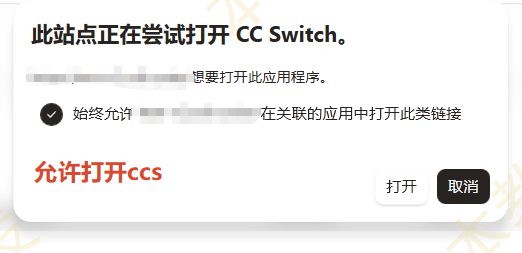
If nothing happens after you click, CCS is usually not installed correctly, or your system did not register the ccswitch:// protocol. Reinstall the latest version of CCS and try again.
4. Confirm the import in CCS
After CCS opens, it shows the provider configuration that is about to be imported. Confirm that the app type, provider name, API endpoint, model, and usage query settings are correct, then select Import.
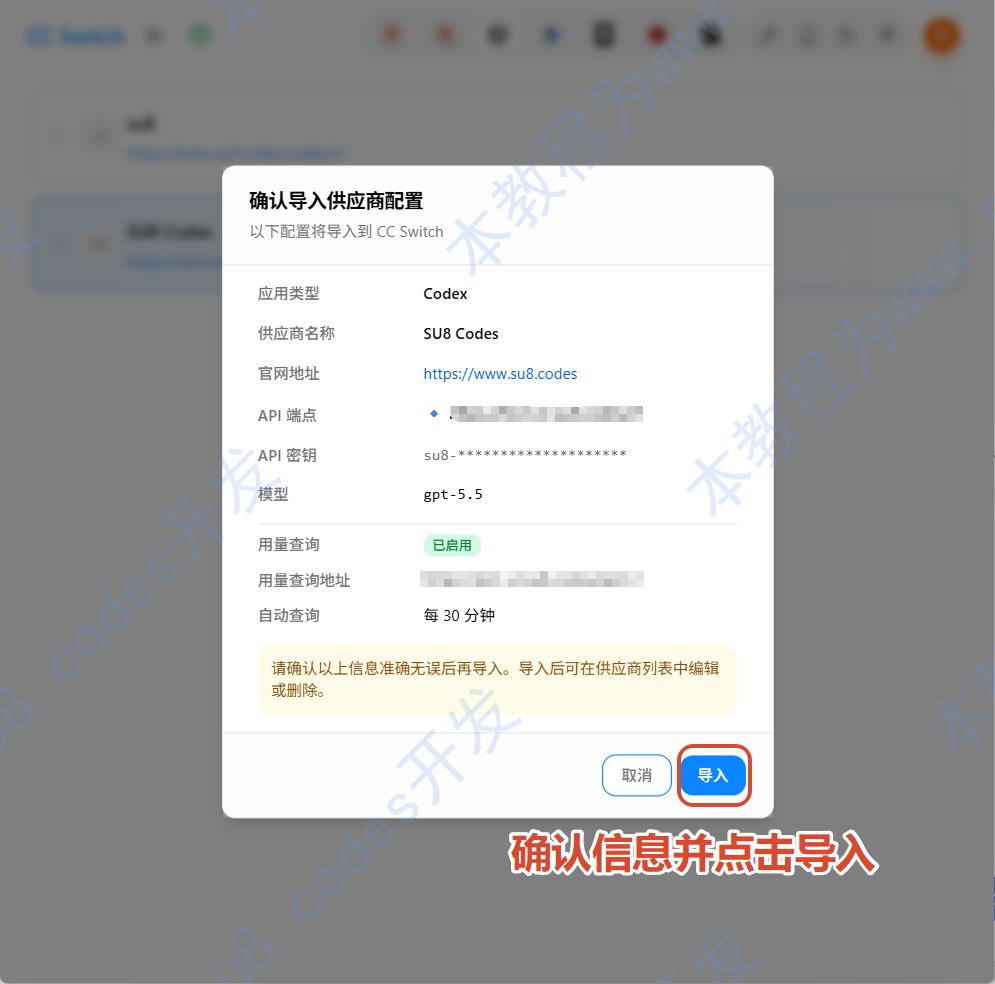
After import, you can still edit or delete this provider from the CCS provider list.
5. Confirm the import succeeded
After the import succeeds, SU8 Codes appears in the CCS list. If usage querying works, you will see used quota, remaining quota, and unit information.

Fast setup is complete. Next, open the client you chose, such as Codex or OpenCode, select the SU8 Codes provider configuration, and start using it.
FAQ
What if nothing happens after selecting “Import to CCS”?
First confirm that CCS is installed and up to date. If the browser does not show an “Open CC Switch” prompt, the ccswitch:// protocol may not have been registered successfully. Reinstalling CCS usually fixes this.
Why can’t an old key be imported?
Old keys usually cannot expose the full plain text again. For safety, the complete API key is generally shown only once when it is created. To import into CCS, create a new key.
Which model should I choose?
If you are not sure, start with the recommended default model. You can adjust it later in CCS or the SU8 console.
Which API endpoint should I choose?
Prefer the endpoint marked as recommended. Unless you clearly know you need a specific endpoint, you do not need to change it manually.
Do I still need to copy the Base URL by hand?
Not when using CCS one-click import. SU8 passes the Base URL, key, model, and other information through the import link.
If you do not use CCS, go back to Get an API key, copy the Base URL, and fill it in manually according to the guide for your client.